MIT Dropbox

Think of Dropbox as a magic folder on your computer that syncs its contents to MIT even when you are not connected via VPN. You can install Dropbox on multiple computers to access your data anywhere, or share a specific folder within Dropbox with a colleagure. Documents modified within your Dropbox and shared with a colleague are updated in real time.
Dropbox is not appropriate for all kinds of data
The following categories of legally protected data are inappropriate for storage on Dropbox:
- Data subject to United States export control or tradbe embargo regulations.
- Social Security numbers, driver's license or other state ID card numbers, and financial account, credit card, or debit card numbers.
- Third-party data received under a Data Use Agreement that specifies particular methods for securing data.
- Data that Infringe others' intellectual property rights, including by sharing copyrighted content.
Sign up for a MIT Dropbox Account
- Visit dropbox.mit.edu
- Check I have read and understand MIT's guidelines for use of Dropbox
- Click Next
- Wait ~15 minutes for your Dropbox account to be setup
Sign into Dropbox
- Click the Windows (Start) button
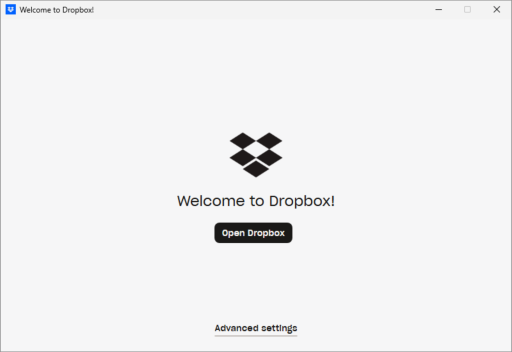
- Begin Typing 'dropbox' and choose 'Dropbox' from the search results
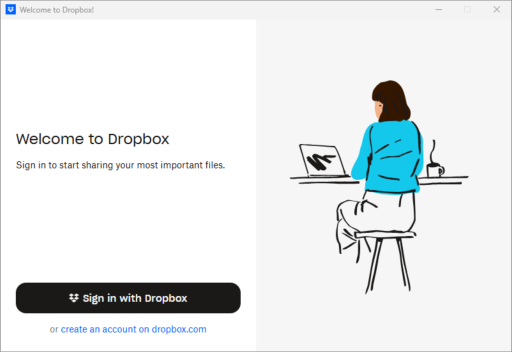
- Sign-in using your MIT email address (Your team requires using single sign-on should be visible)
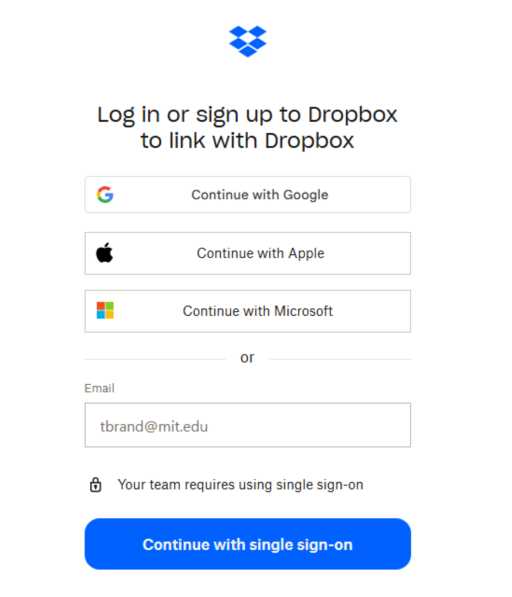
-
Use your enter your Kerberos credentials
-
Enter your Kerberos credentials
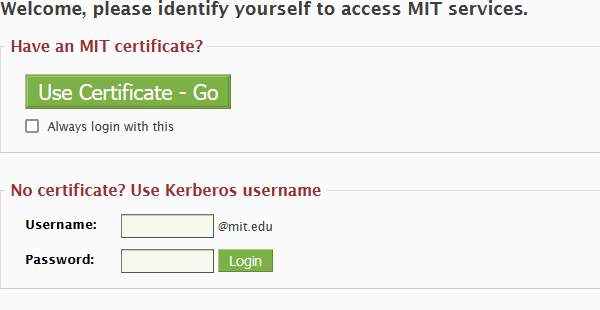
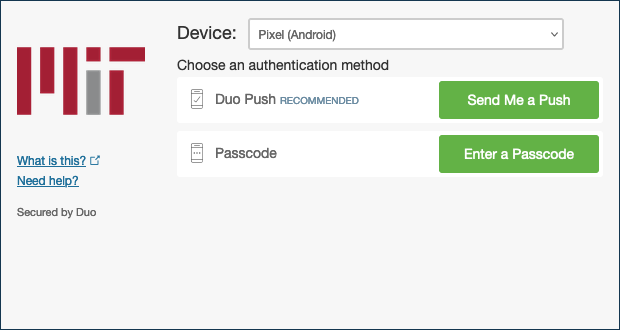
- Complete your DUO two-factor authentication
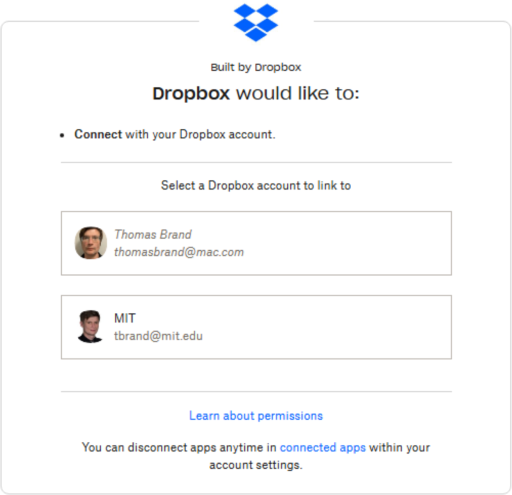
- If prompted choose to connect your MIT Dropbox account.
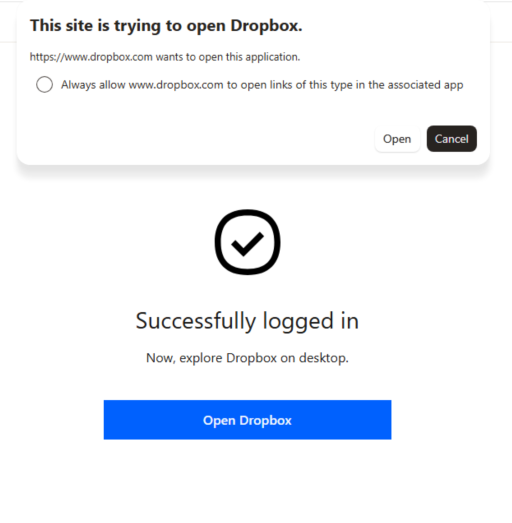
- Open Dropbox if prompted by your browser.
- Click Next to complete the tour.
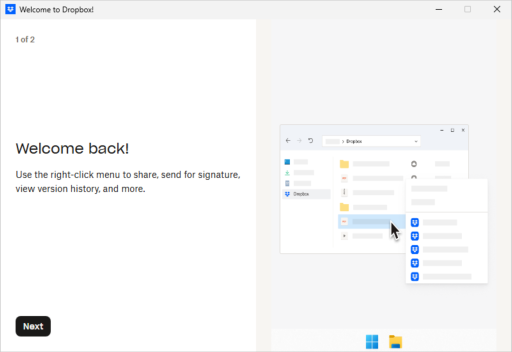
- You are now ready to start using MIT Dropbox.